


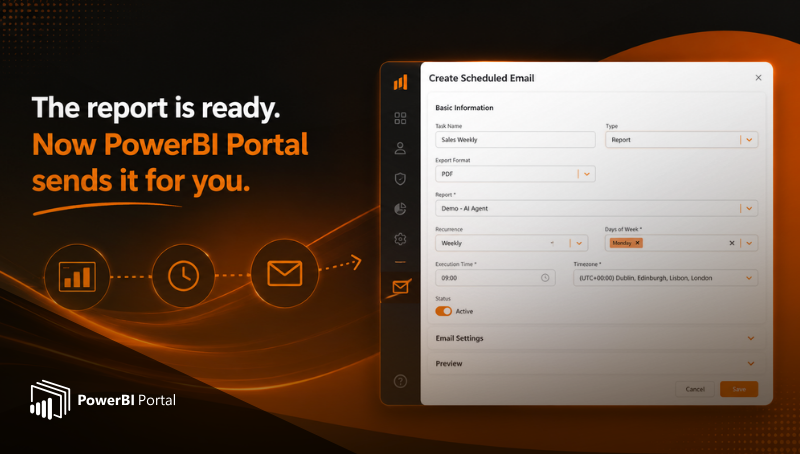
The report is ready. Now PowerBI Portal sends it for you. Introducing Scheduled Emails: automatic report delivery, built into the Portal.
For most teams running Power BI inside a client portal, reporting eventually hits the same wall. The data is ready. The report looks great. But getting it into the right inbox, on the right day, every single time, still depends on someone remembering to export it manually.
PowerBI Portal just removed that step. Scheduled Emails is now a native feature of the platform, built directly into the admin panel admins already use to manage users, areas, and permissions. No connectors, no automation platforms, no separate licensing. Just a form, a recurrence, and a recipient list.
This article walks through what the feature actually does, why it was built the way it was, and where it fits for teams already running Power BI Portal at scale.
The problem with manual report delivery
Manual exports rarely look like a problem on day one. Someone opens the report, exports a PDF, attaches it to an email, sends it. Five minutes, done.
The cost shows up later. As the number of recipients grows, five minutes becomes thirty. As reporting cadence increases from monthly to weekly, the task multiplies. As the person responsible goes on leave, the report simply does not go out that week, and nobody notices until a client asks why.
None of this is a skills problem. It is a structural one. Manual delivery scales linearly with effort, while the business need for timely, consistent reporting scales with growth. At some point those two curves cross, and that is exactly where automation stops being a nice to have and starts being operational risk management.
What Scheduled Emails actually does
Scheduled Emails lets a Portal admin configure a recurring email delivery for any report, file, or datahub content already available inside the portal. The setup happens once. After that, delivery runs on its own, every cycle, without anyone touching it again.
The configuration is split into two parts, both inside the same form.
Basic Information covers what gets sent and when. You give the task a name, select the content type, choose the export format, and pick the specific report from what already exists in your portal. Then you define the recurrence: daily, weekly, or monthly, with specific days of the week where relevant, an exact execution time, and a timezone. A status toggle lets you pause a schedule without deleting it, which matters more than it sounds during seasonal reporting changes or client onboarding gaps.
Email Settings covers who receives it and what the email looks like. Recipients can be selected directly from the Portal user base, meaning the same people who already have access to the report inside the portal can receive it by email with zero extra configuration. Additional external addresses can be added on top, for stakeholders who need the report but do not have a portal account. Subject line and body are fully editable, and both support dynamic placeholders that get filled in automatically at send time.

The placeholders, and why they matter more than they seem
Three placeholders are available across subject and body: #REPORT_NAME#, #EXECUTION_DATE#, and #EXPORT_FORMAT#.
On the surface this looks like a small convenience. In practice it solves a real annoyance. A scheduled email sent every Monday for a year needs each instance to look distinct enough to be searchable later, without anyone manually editing the subject line fifty times. With placeholders, a subject like "Weekly Digest | #REPORT_NAME# | #EXECUTION_DATE#" produces a clean, consistent, and uniquely identifiable email every time, with zero manual input after the initial setup.
For teams managing reporting across multiple clients, this also means the same template logic can be reused across dozens of scheduled emails without rewriting copy for each one.
Why this lives inside the Portal and not as a separate tool
There is a reason this feature was built natively rather than as an integration with an external scheduling or automation tool, and it comes down to one thing: the permission model.
Most scheduling tools have no concept of who is allowed to see what. They send what they are told to send, to whoever is on the list, and the access logic has to be maintained separately, manually, somewhere else. That creates a gap between what the portal actually governs and what the email tool blindly executes.
Scheduled Emails inside PowerBI Portal does not have that gap. Recipients are pulled from the same user model that governs portal access. Reports are selected from what is already structured inside the portal, including whatever Row Level Security or area restrictions already apply. There is no second system to keep in sync, no risk of an old export going to someone whose access was revoked three months ago, and no admin maintaining two separate recipient lists that quietly drift apart over time.
This is the same design principle behind the rest of the Portal: governance should not depend on someone remembering to update two places at once.
Where this fits in a real reporting workflow
A few scenarios where this tends to matter most.
Client facing consultancies managing multiple external accounts, where each client expects a weekly or monthly summary and missing one is a trust issue, not just an inconvenience.
Finance and operations teams with recurring internal reports, monthly close summaries, budget tracking, or KPI digests, where the report itself rarely changes but the delivery discipline is what keeps it useful.
Sales and account teams who need a consistent cadence of performance data sent to stakeholders who do not log into the portal regularly, but still need visibility without asking for it.
In all three cases, the underlying need is the same: reporting that runs on a schedule the business defines, not on the schedule of whoever happens to remember to hit export that week.
Getting started
Scheduled Emails is available now in PowerBI Portal. Setup takes a few minutes: select the report, define the recurrence, choose recipients, and save. The first delivery runs automatically at the next scheduled cycle, no manual trigger required.
👉 Set it up in your portal or book a demo to see the full configuration in action.

Share this post: