



AI Summaries in Power BI Report Emails: What They Are and How to Use Them
 António Coelho··5 min read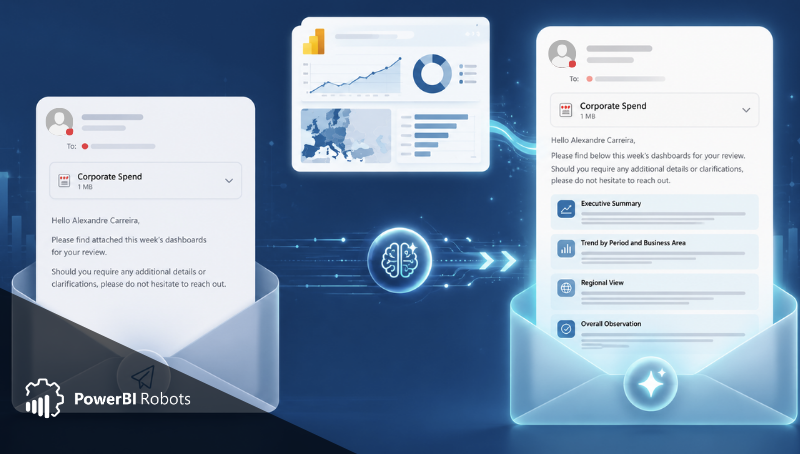
A report email should help the recipient understand what matters quickly.
In many teams, Power BI reports are delivered as images, snapshots, or attachments. That works well when the recipient has time to open the report, inspect the visuals, and interpret the numbers.
But many report recipients do not read emails that way.
Some check reports between meetings. Some read them on mobile. Others only need to know whether there is something important before deciding if they should open the full report.
That is why PowerBI Robots now includes AI-generated summaries in report delivery emails.
The summary appears directly in the body of the email sent by PowerBI Robots. It gives recipients a short written overview of the report content, helping them understand the main message before opening or reviewing the image.
What AI summaries are in PowerBI Robots
AI summaries are short text summaries generated from the report content delivered by PowerBI Robots.
Instead of sending an email with only a report image or attachment, PowerBI Robots can include a written summary in the email body. This gives the recipient context immediately.
The goal is not to replace the report. The report remains the source of detail. The AI summary acts as a first layer of explanation, helping the reader understand what they are receiving and where they may need to focus.
For example, a sales report email can include a short summary of visible performance indicators. An operations report can highlight the status of key metrics. A customer report can give a quick explanation of what the attached report shows.
This makes report emails more useful, especially for recurring deliveries.
Why AI-generated report summaries matter
Report automation saves time for the sender, but it should also save time for the recipient.
Without a summary, the recipient needs to open the image, inspect the dashboard, compare values, and decide what matters. That may be easy for analysts, but not every recipient has the same level of time or Power BI knowledge.
An AI-generated summary helps by putting the main message directly in the email.
This is useful when reports are sent frequently, when recipients are reading on mobile, or when the report is sent to managers, customers, or operational teams who need quick context.
The email becomes more informative before the recipient even opens the report image.
What the AI summary contains
The AI summary describes the information visible in the delivered report.
Depending on the report content, it may include an overview of key metrics, relevant highlights, or notable points shown in the snapshot. The output depends on the report page and the information available at the time of delivery.
In a weekly sales report, the summary may mention overall performance, leading regions, or areas that appear below target.
In an operational report, it may describe current status, exceptions, or metrics that require attention.
In a customer-facing report, it may provide a simple explanation of what the customer is receiving.
The purpose is to provide context, not a full business investigation. The recipient can still open the report for details, but the email already gives them a starting point.
Email with AI summary vs email without AI summary
The difference is easiest to understand by comparing two report emails.
Without an AI summary, the email may simply say that the latest report is attached or included below. The recipient has to open the image and interpret the report manually.
With an AI summary, the email includes a short explanation in the body. The recipient can read the key message first and then open the report for more detail.
Email without AI summary:
Email with AI summary:
How to use AI summaries in PowerBI Robots
AI summaries are configured as part of the report delivery experience in the new PowerBI Robots interface.
First, open the playlist that sends the report. AI summaries are connected to report delivery, so they should be configured in the email body of the playlist that controls what is sent and to whom.
Next, review the reports included in the playlist. The summary is generated from the delivered report content, so it is important to confirm that the selected report pages are the right ones for the audience.
Before using the feature in a recurring delivery, run or preview the playlist and review the generated email. Check whether the summary is useful, clear, and appropriate for the intended audience.
If the summary is too broad, review the report page being delivered. Focused report pages usually lead to clearer email summaries.
What AI summaries do not do
AI summaries are useful, but they are not a replacement for analysis.
They do not answer follow-up questions from recipients. They do not act as a chat assistant inside the email. They do not automatically explain the business causes behind every metric.
They summarise the report content included in the delivery.
This distinction is important. If a report shows that sales are down, the summary may identify what is visible in the report, but it should not be treated as a full explanation of why performance changed.
Being transparent about these limits helps set the right expectations and makes the feature more trustworthy.
Final thoughts
AI summaries make PowerBI Robots report emails more useful for recipients.
Instead of receiving only an image or attachment, users can read a short summary directly in the email body. This helps them understand the report faster, decide whether they need to open it immediately, and focus on the most relevant information.
Start a PowerBI Robots trial and try AI summaries in your next report email.
You can also read the full launch overview: PowerBI Robots Just Got Smarter: New Interface, Onboarding, and AI Summaries.

Share this post: