



Playlist History in PowerBI Robots: How to Read Statuses and Troubleshoot Failed Deliveries
 António Coelho··6 min read
The Problem With Missing Reports
A manager says Monday's report never arrived. Maybe the report failed to load, maybe the email failed, maybe the playlist never ran. Without a record of each execution, finding out which one it was means guessing.
Playlist History in PowerBI Robots removes the guessing. Each execution is recorded with its status, the result of every delivery, and the reason when something didn't go as planned.
What Playlist History Is
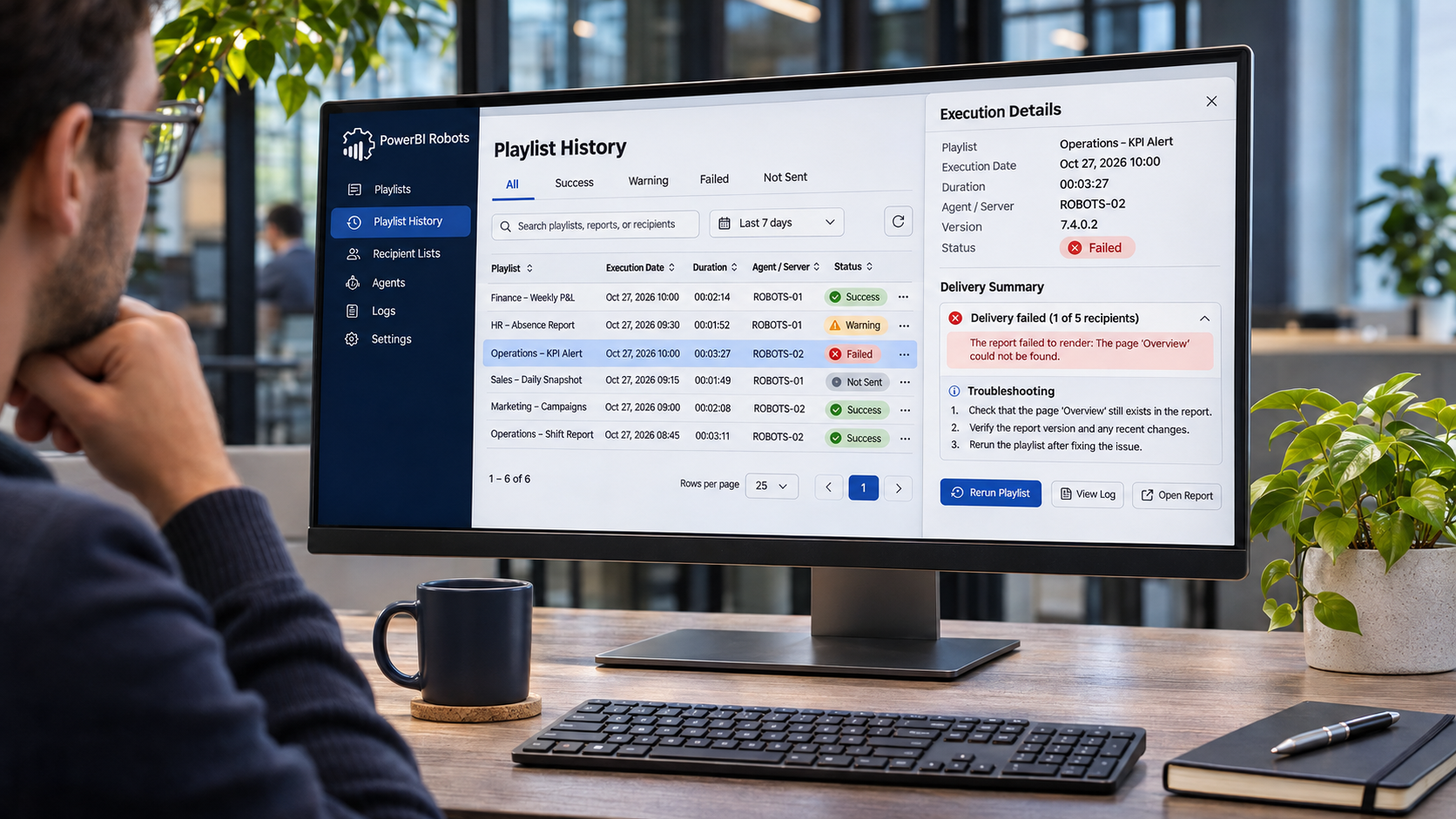
Playlist History is the screen in Robots that lists playlist executions, one row per execution, with the status, a message and the Agent that ran it.
You'd use it when:
- A recipient says a report didn't arrive
- A playlist ends as Warning, Not Sent or Failed and you need the reason
- You run more than one Agent and need to know which server executed a playlist
How It Works
Playlists run on the Robots Agent installed on your infrastructure. When an execution ends, the Agent sends the result of each delivery to Robots, and the playlist's status is worked out from those results:
| Status | What it means | Where to look next |
| Success | Every report was rendered and delivered | Nothing to do |
| Warning | Some deliveries succeeded, others didn't | Execution Details, to find the delivery that failed |
| Not Sent | Nothing was delivered: every delivery failed, or every one was skipped by a condition | Execution Details, to see which of the two it was |
| Failed | The execution stopped before finishing | The Message column, which shows the error |
Not Sent doesn't always mean something went wrong. If a playlist uses DAX conditions and none of them were met, it ends as Not Sent by design. Failed is for executions that stopped altogether, for example when the trial has expired or the Agent couldn't authenticate with Power BI.
Before You Start
Make sure you have:
- The Agent running, shown as Agent Online in the Robots sidebar
- An email address to receive error alerts, if you want to be notified when a playlist fails
How to Use It in Robots
Step 1: Find the execution
Open Playlist History. Search by playlist title or server, set a Date Range, or use the All, Success, Warning, Failed and Not Sent tabs to narrow the list.
Step 2: Read the row
Each row shows the Title, Message, Agent Version, Server, Execution Date, Finished At and Status. Execution Date is when the execution started and Finished At is when its result was recorded, both in your browser's local time. When there's nothing to report, the Message column shows View Details.
Step 3: Open Execution Details
Click the row. Under Report Executions, each report or visual is listed with its destination, status and message:
- Warning: the report didn't render correctly after the automatic retries, or the delivery failed (email, SharePoint, FTP, Webhook, Azure or File System). The message comes from Power BI, the browser or the delivery service and depends on the cause, for example a report page that has been deleted or renamed.
- Not Sent, with "The condition for this report failed, so the report was not sent." or "The condition for this destination failed, so the report was not sent.": a DAX condition wasn't met.
- Not Sent, with "Your playlist rendering settings prevented it from being sent.": the report rendered correctly but was held back because another report failed to render and the playlist's On Error or Timeout option is on.
- Failed: the report that failed to render, when the On Error or Timeout option is on.
Step 4: Turn on error alerts
Go to Settings → General and enter an email address in Send Admin Errors to. Then, in the playlist's General tab, turn on Send admin email on error and save.
Step 5: Test before you activate
Execute Now runs the playlist for real, so recipients receive it. To test without sending anything, open Test Your Playlists in the Agent, select the playlist, keep Override Target Delivery of Playlist ticked and click Execute Playlist. Robots creates the files in the playlist's output format in a local folder, and the test isn't recorded in Playlist History. If you untick the option, the test delivers to the real destinations.
What Happens When the Playlist Runs
Before recording a failure, Robots retries a report that fails to render up to three more times, and attempts each email up to three times, ten seconds apart.
Two options change how errors are handled. In the playlist's General tab, under Rendering Settings, the On Error or Timeout option ("Do not send playlist when an error or timeout occurs") holds back the reports that rendered correctly when another report fails to render, instead of sending an incomplete delivery. In the Agent's Global Settings, the Ignore report Timeouts option treats a rendering timeout as a successful render.
If error alerts are on and the playlist ends with any status other than Success, the Agent sends an email to the alert address, using the email settings configured in the Agent. The subject is "PowerBI Robots | Playlist '' failed" and the email links to Playlist History, where the details are. Executions where the only issue was an unmet DAX condition don't send an alert.
Robots records an execution only after it starts. If a scheduled playlist has no entry, check that the Agent is online and was running at the scheduled time, and that the playlist is enabled. Disabled playlists are skipped without an entry.
Frequently Asked Questions
Who can see Playlist History?
Every user in the tenant sees the same history, not just the person who created the playlist.
Does the error alert say what went wrong?
No. It names the playlist and links to Playlist History, where you'll find the message for each delivery.
Does Execute Now count as a test?
No. Execute Now delivers to the real recipients and is recorded in Playlist History. To test without sending, use Test Your Playlists in the Agent.
Where can I find more detail than the message shows?
In the Agent's log files, in the PowerBIRobots\Logs folder inside the system TEMP folder of the machine where the Agent runs, by default C:\Windows\Temp\PowerBIRobots\Logs. A new file is created each day, and the last 90 are kept. For rendering problems, turn on Extra Logging Enabled in the Agent's Global Settings to add the browser's events to the log.
If you haven't set up a playlist yet, the article "Set Up PowerBI Robots in Under 10 Minutes: A Getting Started Guide (2026)" covers the basics, from connecting your account to activating your first delivery.

Share this post: