


SubAreas and Multiple Embed URLs: What's New in PowerBI Portal
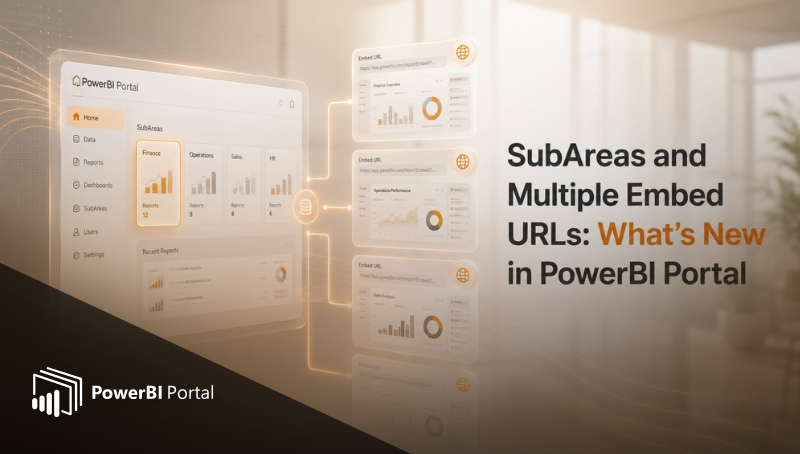
Table of Contents
- Key benefits
- Where SubAreas appear in the interface
- When to use SubAreas
- The problem Multiple Embed URLs solves
- What Multiple Embed URLs does
- Key benefits
- Where Multiple Embed URLs appear in the interface
- When to use Multiple Embed URLs
- Summary: What Each Feature Does
- Getting Started
- To start using SubAreas
- To start using Multiple Embed URLs
- The Bigger Picture
PowerBI Portal just shipped two updates that address some of the most common challenges teams face as their analytics portals grow in complexity.
SubAreas introduces a second level of content organisation, giving administrators more granular control over how reports are structured and discovered. Multiple Embed URLs removes a long-standing limitation around portal integrations, making it possible to embed the same portal securely across multiple domains without duplication.
This article explains what each feature does, why it matters and how to start using it.
SubAreas: Organise Your Portal with a Second Level
The problem SubAreas solves
As Power BI portals grow, a single level of organisation stops being enough.
A portal might have Areas for Sales, Finance, Operations and HR. Within each Area, there are dozens of reports covering different topics, time periods or audiences. Without a way to subdivide those Areas, users are left scrolling through flat lists of reports to find what they need, and administrators struggle to maintain editorial clarity over large content structures.
The result is navigational friction, the kind that quietly reduces adoption, even when the underlying data is excellent.
What SubAreas does
SubAreas adds a second hierarchical level to the PowerBI Portal content structure. Administrators can now define SubAreas within existing Areas, creating an Area → SubArea hierarchy that makes navigation more precise and content discovery more intuitive.
The hierarchy works as follows: an Area acts as the top-level grouping (for example, Finance). Each Area can contain one or more SubAreas (for example, Quarterly Reports, Budget Tracking and Compliance). Reports are then assigned to a specific SubArea, giving users a structured path to find exactly what they need.
Key benefits
- Hierarchical organisation that scales with portal complexity
- Better content discovery for end users navigating large report libraries
- Segmentation by topic, department, audience or functional area
- Greater editorial control for administrators managing content structure
- Particularly valuable for organisations with high report volume or multi-department portals
Where SubAreas appear in the interface
SubAreas are configured in two places within PowerBI Portal:
In Edit Report, a new Sub-Area field appears alongside the existing Area dropdown. Administrators assign each report to a specific SubArea when creating or editing a report entry.
In Reports Viewer, users see Area and Sub-Area filter dropdowns at the top of the page. Selecting an Area narrows the Sub-Area options to those defined within it, allowing users to navigate quickly to the exact content they need.
When to use SubAreas
SubAreas are most valuable in these scenarios:
- Portals serving multiple departments or business units, each with their own report categories
- Client-facing portals where different client segments need to access different report types within the same service area
- Organisations with growing report libraries where flat Area navigation is no longer sufficient
- Scenarios where reports cover multiple time periods, geographies or dimensions that benefit from structured sub-categorisation

Multiple Embed URLs: One Portal, Multiple Integrations
The problem Multiple Embed URLs solves
Embedding a PowerBI Portal into an external application or website is a common requirement. A company might want to embed their analytics portal inside a client-facing web application, an internal intranet, a SaaS platform or a departmental dashboard.
Until now, portal embedding was limited to a single authorised URL. Organisations that needed to embed the same portal in multiple contexts faced an uncomfortable choice: duplicate the portal configuration or accept that only one integration could be maintained at a time.
Neither option is ideal. Duplicating portals creates governance and maintenance overhead. Limiting to a single URL creates integration constraints that slow down product teams.
What Multiple Embed URLs does
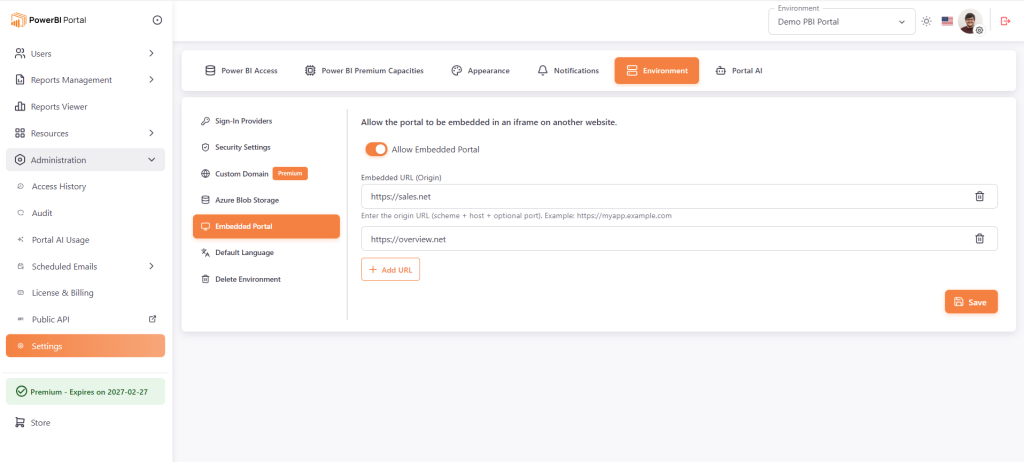
Multiple Embed URLs allows administrators to define a list of authorised domain URLs that are permitted to embed the PowerBI Portal in an iframe. There is no limit to the number of URLs that can be authorised, and each URL is managed from a single administration panel.
This means the same portal configuration, with the same reports, permissions, governance settings and branding, can be embedded securely across multiple digital products and platforms simultaneously.
Key benefits
- Flexibility to integrate the portal into multiple digital products without duplication
- Centralised management of all authorised domains from a single panel
- Explicit security control: only pre-approved URLs can embed the portal
- Reuse the same portal configuration, governance and permissions across integrations
- No need to maintain separate portal instances for different embedding contexts
Where Multiple Embed URLs appear in the interface
The feature is configured in Administration → Settings → Embedded Portal. After enabling the Allow Embedded Portal toggle, administrators can add and remove authorised URLs using the Embedded URL (Origin) field and the Add URL button. Each authorised URL is displayed as a list entry and can be deleted individually.
When to use Multiple Embed URLs
- SaaS products that embed Power BI analytics for their end customers
- Organisations running both internal and client-facing analytics on the same portal
- Enterprise environments with multiple intranet or internal application domains
- Agencies or consultancies managing portals that are embedded in client environments
- Organisations migrating domains or running staging and production environments in parallel
Summary: What Each Feature Does
| Feature | What it does |
| SubAreas | Adds a second organisational level (Area → SubArea) for better navigation and content discovery in complex portals |
| Multiple Embed URLs | Allows the portal to be embedded securely in multiple domains from a single, centralised admin panel |
| Who benefits most — SubAreas | Admins managing large, multi-department portals · organisations with growing report libraries |
| Who benefits most — Embed | SaaS platforms · multi-domain enterprises · organisations with internal and external analytics portals |
| Where to configure — SubAreas | Edit Report (Sub-Area field) · Reports Viewer (Area + Sub-Area filters) |
| Where to configure — Embed | Administration → Settings → Embedded Portal |
Getting Started
Both features are available now in PowerBI Portal. If you are on an active subscription, they are already enabled in your environment.
To start using SubAreas
Navigate to Reports Management and open any existing report for editing. You will see the Sub-Area field below the Area dropdown. Select or create a SubArea to organise that report within the Area hierarchy. Once SubAreas are assigned, users will see the Area and Sub-Area filter dropdowns in the Reports Viewer.
To start using Multiple Embed URLs
Navigate to Administration → Settings → Embedded Portal. Enable the Allow Embedded Portal toggle if not already active. Add each domain you want to authorise using the Embedded URL (Origin) field. Save. The portal can now be embedded in iframes hosted at any of the listed domains.
| Not yet using PowerBI Portal? Both features are available on the 30-day free trial — no credit card required. Start your trial at powerbitiles.com/PBIPortal |
The Bigger Picture
SubAreas and Multiple Embed URLs address two different but related challenges in client-facing analytics: how content is organised for users, and how the portal is integrated into the broader digital environment.
As analytics portals mature, both dimensions become increasingly important. A well-structured portal with clear navigation retains users and drives adoption. A portal that integrates cleanly into multiple digital products becomes infrastructure – something people rely on without thinking about it.
These two updates move PowerBI Portal further in that direction.
About PowerBI Portal
PowerBI Portal is a client-facing analytics portal built for Power BI. It enables organisations to share Power BI reports with external audiences, clients, partners and stakeholders, through a governed, branded and navigable portal experience, without requiring Power BI licences for end users.

Share this post: